
Tools for Removing Objects in Lightroom: Step-by-Step Guide

Have you ever captured the perfect shot, only to discover an unwanted tourist, power line, or stray object ruining your composition? You’re not alone. Object removal is one of the most essential skills in modern photo editing, transforming cluttered images into clean, professional photographs that truly capture your vision.
Learning how to remove objects in Lightroom can save hours of frustration and elevate your photography to new heights. Whether you’re a beginner just starting your editing journey or an experienced photographer looking to refine your workflow, mastering Lightroom’s object removal tools will give you complete creative control over your images.
In this comprehensive guide, we’ll explore every tool Lightroom offers for removing unwanted objects from photos, from traditional healing techniques to cutting-edge AI-powered removal. You’ll learn exactly when to use each tool, step-by-step instructions for flawless results, and expert tips to avoid common pitfalls.
Why Object Removal Matters in Photo Editing
Every photographer faces the challenge of unwanted elements in their shots. A beautiful landscape can be marred by trash, power lines, or distracting signs. Portrait sessions often capture stray hairs, blemishes, or background clutter that draws attention away from your subject.
Professional-looking images require clean compositions. Object removal in Lightroom allows you to:
- Create distraction-free compositions that guide viewer attention
- Enhance natural beauty without obvious editing marks
- Save time compared to complex Photoshop workflows
- Maintain image quality while removing imperfections
- Deliver client-ready photos faster
The good news? Lightroom provides multiple powerful tools specifically designed for this task, each with unique strengths for different scenarios.
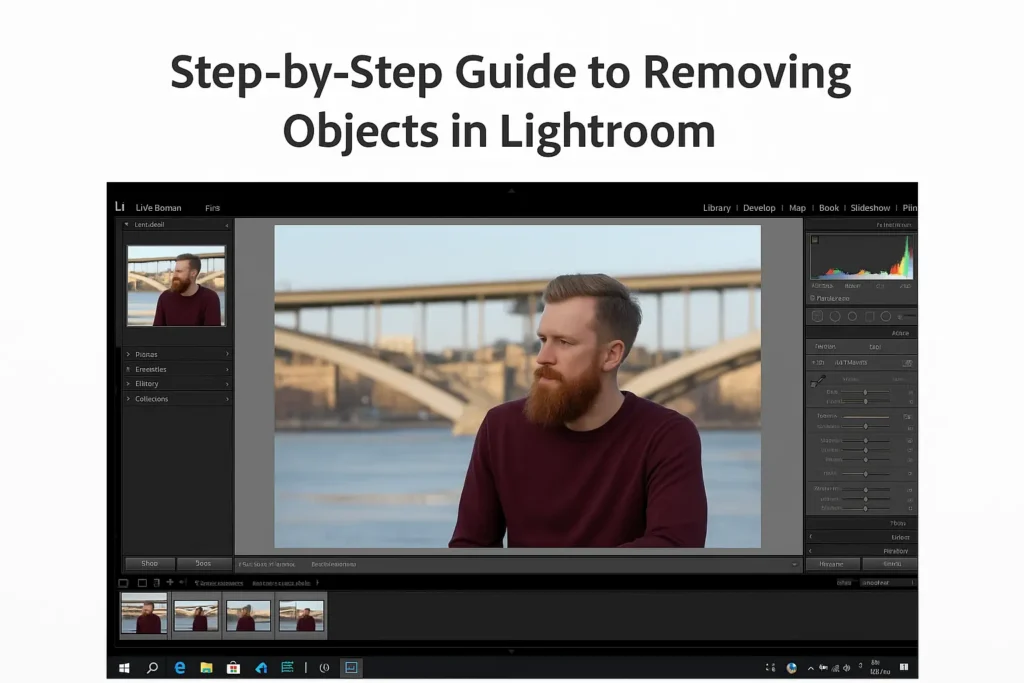
Step-by-Step Guide to Removing Objects in Lightroom
Detailed Step-by-Step: Mastering the Healing Tool
Step 1: Open and Select Your Image
Start by launching Adobe Lightroom and navigating to your Library module. Browse your photo collection and click on the image you want to edit. Make sure the photo loads completely before proceeding to the editing workspace. This ensures all editing tools function properly and your changes save correctly.
Step 2: Enter the Develop Module
Once your image is selected, switch to the Develop module by clicking “Develop” at the top right of the screen or pressing the “D” key on your keyboard. This is where all your editing magic happens, including object removal.
Step 3: Choose the Right Tool for Your Specific Task
This is the most critical decision in your removal workflow. Analyze what you’re trying to remove:
- Healing Brush: Best for blending areas seamlessly with surrounding pixels. Perfect for organic textures like skin, grass, or clouds.
- Clone Stamp: Ideal when you need exact texture duplication without automatic blending. Use this for precise pattern matching.
- Content-Aware Fill/Remove: Excellent for medium-complexity objects where you want Lightroom to intelligently analyze and fill the space automatically.
- AI Remove Tool: Your go-to for large objects or complex backgrounds where traditional methods struggle.
Step 4: Adjust Your Brush Settings Before Starting
Before touching your image, take a moment to configure your tool properly:
- Size: Adjust the brush diameter to match your object. Use bracket keys [ ] for quick sizing, or drag the Size slider in the tool panel.
- Feather: Control edge softness. Higher feather creates softer transitions, while lower feather provides sharper edges.
- Opacity: Reduce opacity for subtle corrections or keep at 100% for complete removal.
- Flow: Controls how quickly the effect builds up with each stroke.
Getting these settings right before you start saves significant cleanup time later. Zoom into your image to at least 50-100% for accurate brush sizing.
Step 5: Carefully Brush Over the Object
Now comes the hands-on work. With your tool selected and configured:
- Position your cursor over the object you want to remove
- Click and drag to paint over the entire object
- Take your time and ensure complete coverage
- For larger objects, work in sections rather than one continuous stroke
- Include a small margin around the object’s edges for cleaner removal
- Release your mouse when you’ve covered the entire area
Pro Tip: Work methodically. It’s better to make multiple precise corrections than rush through with one large, imprecise stroke.
Step 6: Review and Refine the Results
After your initial removal:
- Check the result at various zoom levels (50%, 100%, and full view)
- Look for artifacts, unnatural patterns, or inconsistent textures
- Adjust the source point if automatic selection didn’t work well
- Make additional corrections to any problem areas
- Use complementary tools to perfect edges or blend transitions
Step 7: Save Your Edited Masterpiece
Once you’re satisfied with your clean, polished photo:
- Click “Done” to accept all changes
- Your edits are automatically saved to the Lightroom catalog
- Export the image when ready to share or print (File > Export)
- Consider creating a virtual copy to preserve the original state
Congratulations! You’ve successfully removed unwanted objects and created a professional-looking image.
The Healing Tool: Perfect for Small Imperfections
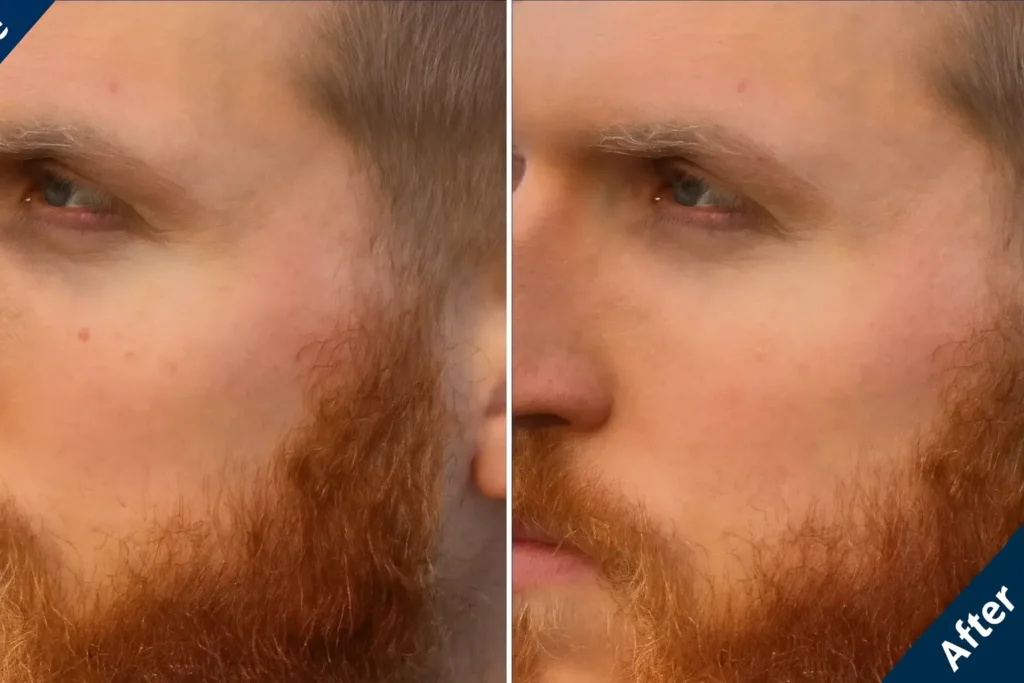
The Lightroom healing tool is your go-to solution for small blemishes, spots, and minor distractions. It works by sampling nearby pixels and blending them naturally into the area you want to fix, creating seamless results that look completely natural.
When to Use the Healing Tool
The healing tool works best for:
- Skin blemishes and spots in portraits
- Small sensor dust spots on your camera sensor
- Minor distractions like small branches or debris
- Areas where you need natural texture blending
- Organic surfaces like skin, foliage, water, or sky
Detailed Step-by-Step: Mastering the Healing Tool
Step 1: Navigate to Your Image
Open Adobe Lightroom and select the photo you want to edit from your Library. Ensure the image is fully loaded before proceeding to avoid any lag or tool malfunction.
Step 2: Access the Healing Brush
Switch to the Develop module and locate the Healing Brush tool in the toolbar below the histogram. You can also press the “H” key as a quick keyboard shortcut. This brings up the healing tool panel with all necessary controls.
Step 3: Select Heal Mode
In the tool options panel, ensure “Heal” mode is selected rather than “Clone.” This activates the intelligent blending algorithm that makes the healing tool so effective. The mode selector is usually at the top of the tool panel.
Step 4: Configure Brush Size Precisely
Adjust your brush size to be slightly larger than the object you’re removing. Use these methods:
- Drag the Size slider in the tool panel
- Press [ to decrease or ] to increase size
- Right-click and drag (on some systems)
The brush size should encompass the entire blemish with a small margin around it.
Step 5: Fine-Tune Feather and Opacity
Set the Feather slider to create soft, natural edges. For most situations, 50-80% feather works well. Adjust Opacity if you want a more subtle correction, though 100% is standard for complete removal.
Step 6: Click on the Object
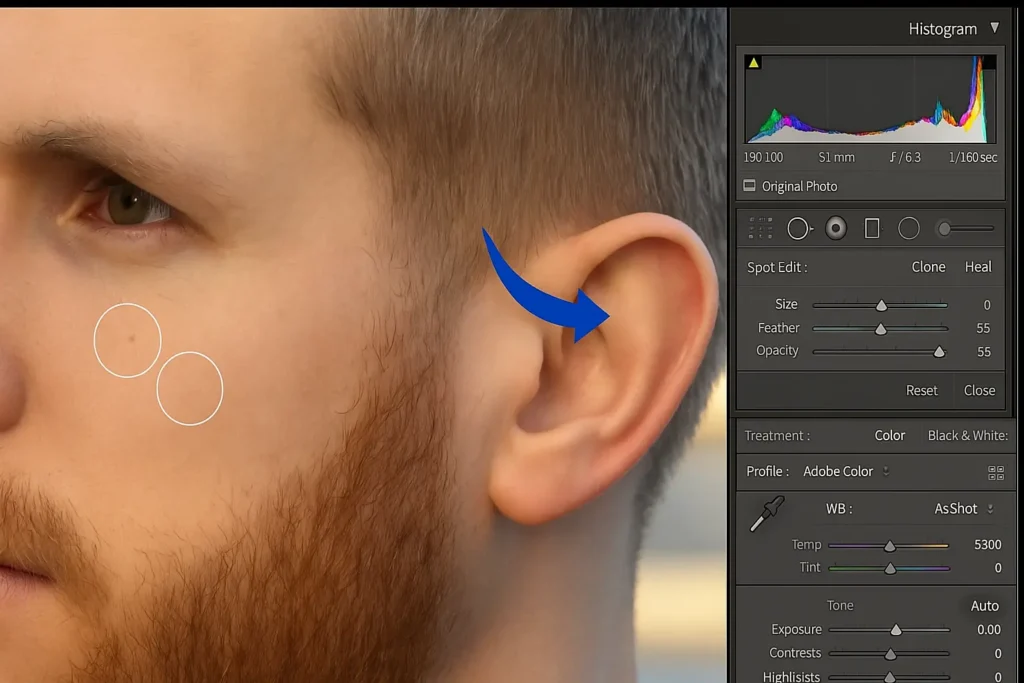
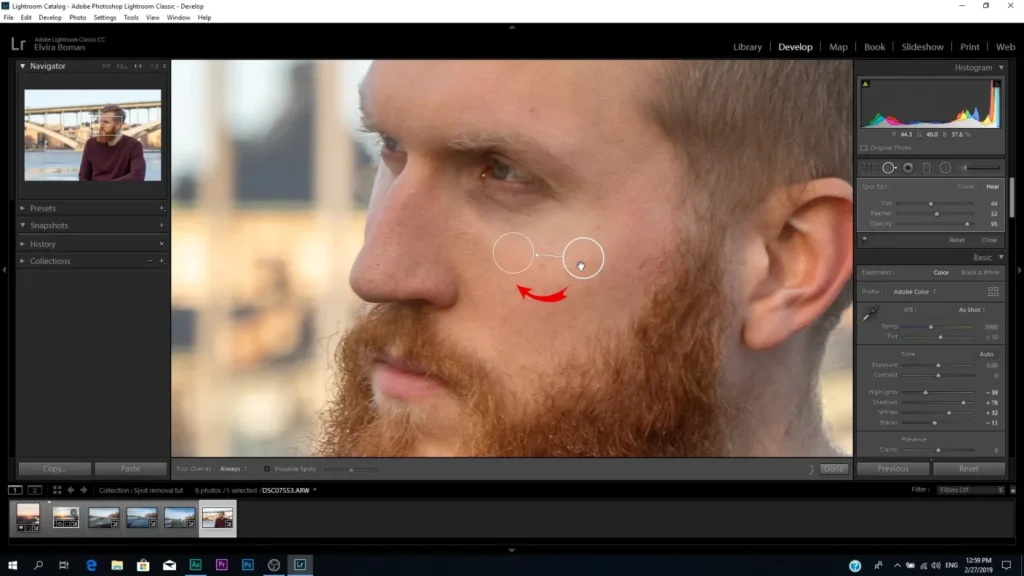
Position your cursor directly over the blemish or object you want to remove and click once. Lightroom instantly samples a nearby area and blends it into your target spot. You’ll see two circles connected by a line:
- The solid circle: Where you clicked (the area being corrected)
- The hollow circle with a pin: The source area Lightroom chose
Step 7: Adjust Source Selection if Needed
If Lightroom’s automatic source selection doesn’t look good, simply drag the hollow circle to a better location. Choose an area with similar texture, color, and lighting to the surrounding area.
Step 8: Refine with Additional Adjustments
Use these sliders to perfect your correction:
- Feather: Adjust for smoother or sharper transitions
- Opacity: Lower for more subtle blending
- Size: Resize the correction spot if needed
Step 9: Apply to Multiple Spots
Continue clicking on additional blemishes. Each click creates a new healing correction. You can work efficiently by correcting multiple spots in succession.
Step 10: Review and Finalize
Zoom out to view the full image and ensure all corrections look natural. Press “Done” or click outside the tool panel to complete your healing work.
Pro Tip: Use a brush size slightly larger than the object you’re removing for cleaner edges and better blending. This technique prevents edge artifacts and creates more professional results.
Best Practices for the Healing Tool
- Work on a zoomed-in view for precision
- Use multiple small corrections rather than one large brush stroke
- Pay attention to texture direction when manually choosing source areas
- Lower opacity settings create more subtle, natural results
- Feather setting should match the softness of surrounding areas
Common Mistakes and How to Fix Them
Even experienced editors make mistakes when learning to remove unwanted objects from photos. Here are the most common errors and their solutions:
Mistake 1: Using the Wrong Tool
Problem: Trying to remove large objects with the healing tool creates blurry, obvious patches.
Solution: Switch to Content-Aware Remove or AI Remove for larger objects. Reserve healing for small imperfections.
Mistake 2: Ignoring Lighting Direction
Problem: Cloned or healed areas look flat because lighting doesn’t match.
Solution: Choose source samples from areas with similar lighting. Adjust shadows and highlights after removal.
Mistake 3: Creating Repetitive Patterns
Problem: Using the same source area repeatedly creates obvious duplicated textures.
Solution: Vary your source selection. Sample from multiple nearby areas with similar characteristics.
Mistake 4: Working Too Fast
Problem: Rushed removal leaves visible artifacts and unnatural transitions.
Solution: Slow down. Make multiple small corrections instead of one large brush stroke. Review at different zoom levels.
Mistake 5: Over-Processing
Problem: Excessive removal makes images look artificial or “plastic.”
Solution: Accept minor imperfections. Perfect removal isn’t always natural. Sometimes less is more.
Mistake 6: Not Checking the Entire Image
Problem: Focus on one area while missing how removal affects overall composition.
Solution: Regularly zoom out to full image view. Check how corrections interact with the entire scene.